3. Setting Invoicing Parameters as a Lodge Treasurer
Login to your portal using your supplied credentials at https://masonsview.com.au/ .
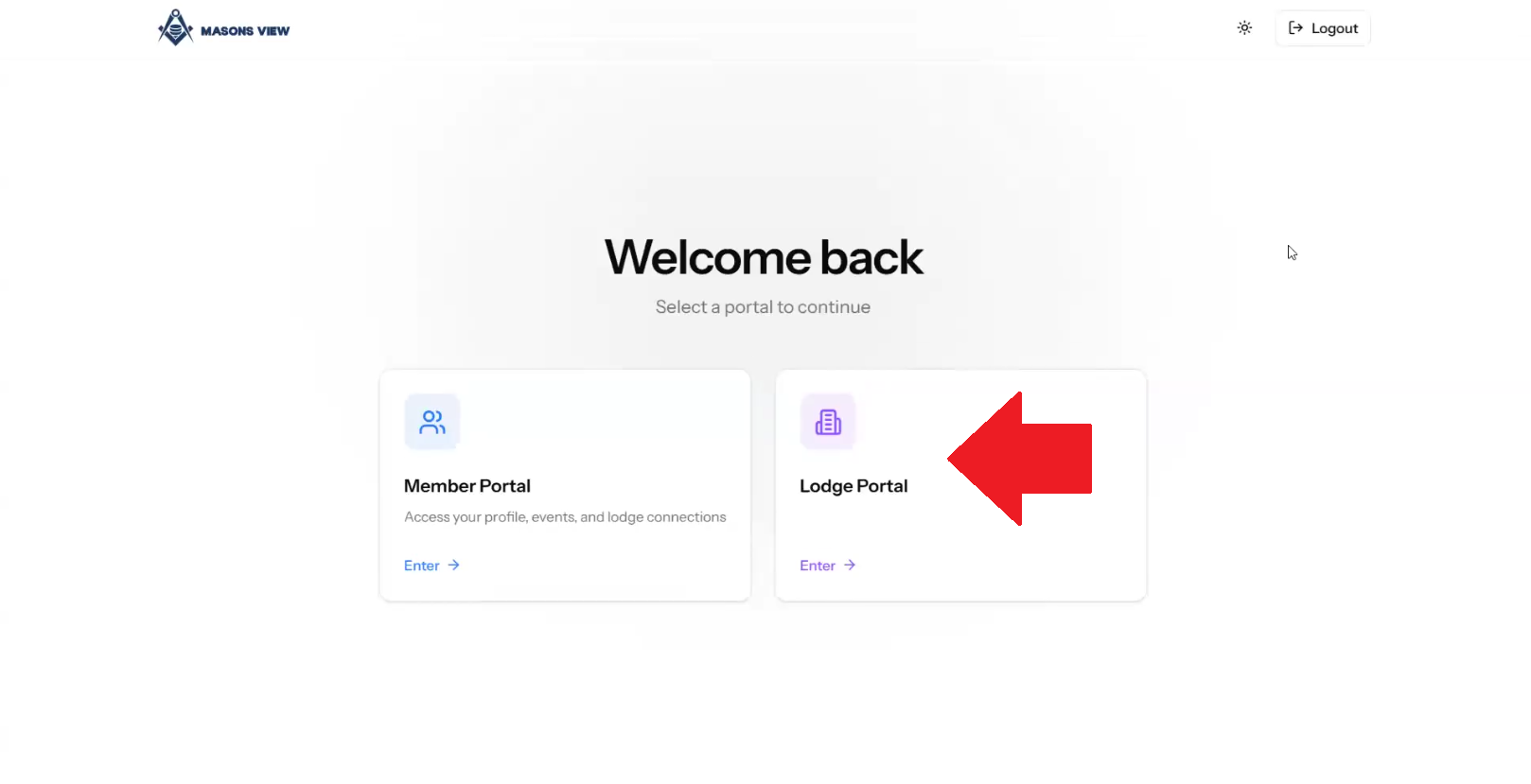
Select the LODGE portal as per the below screenshot.
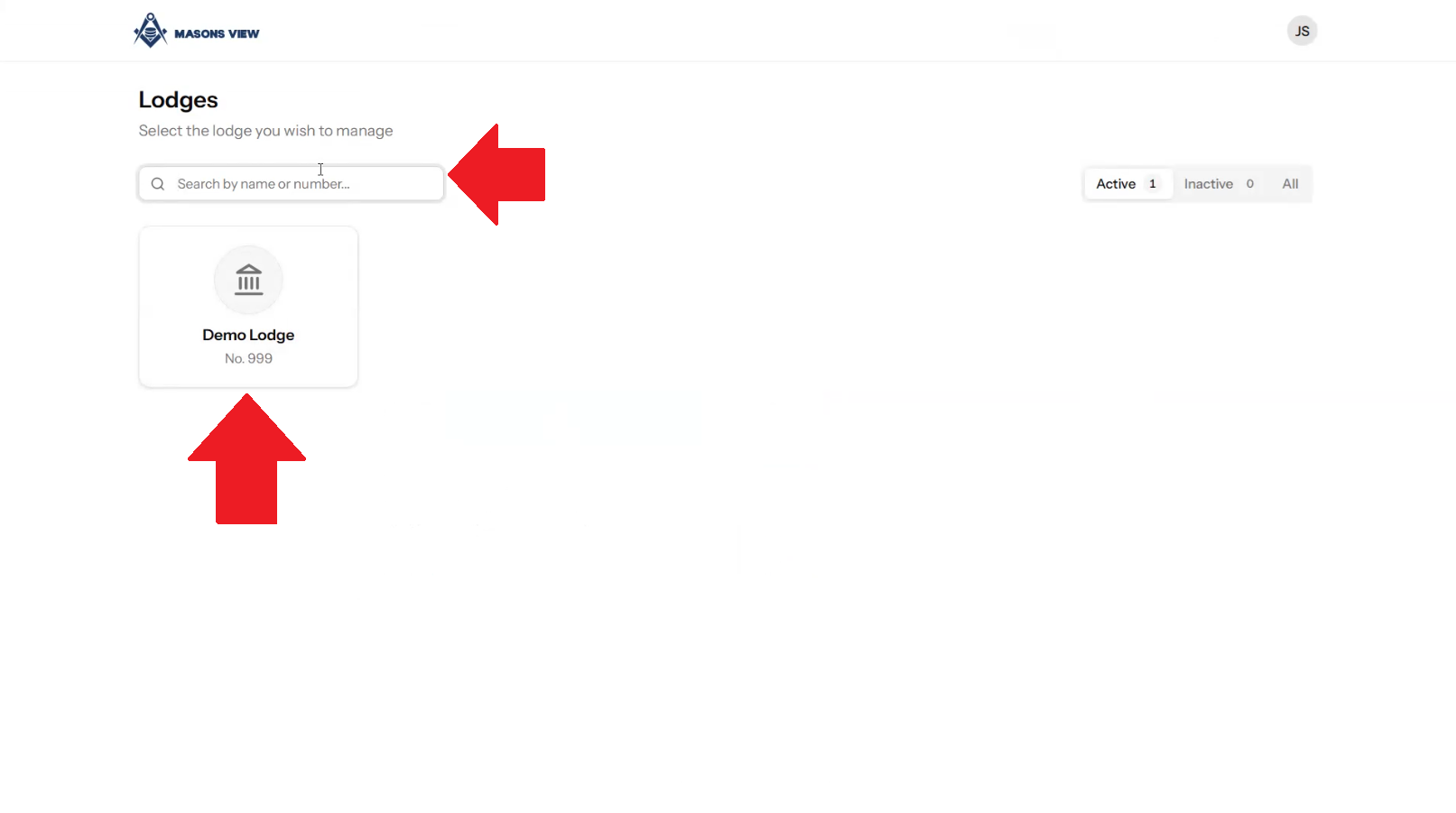
Search for your lodge using the search bar or select your lodge using the buttons on screen.
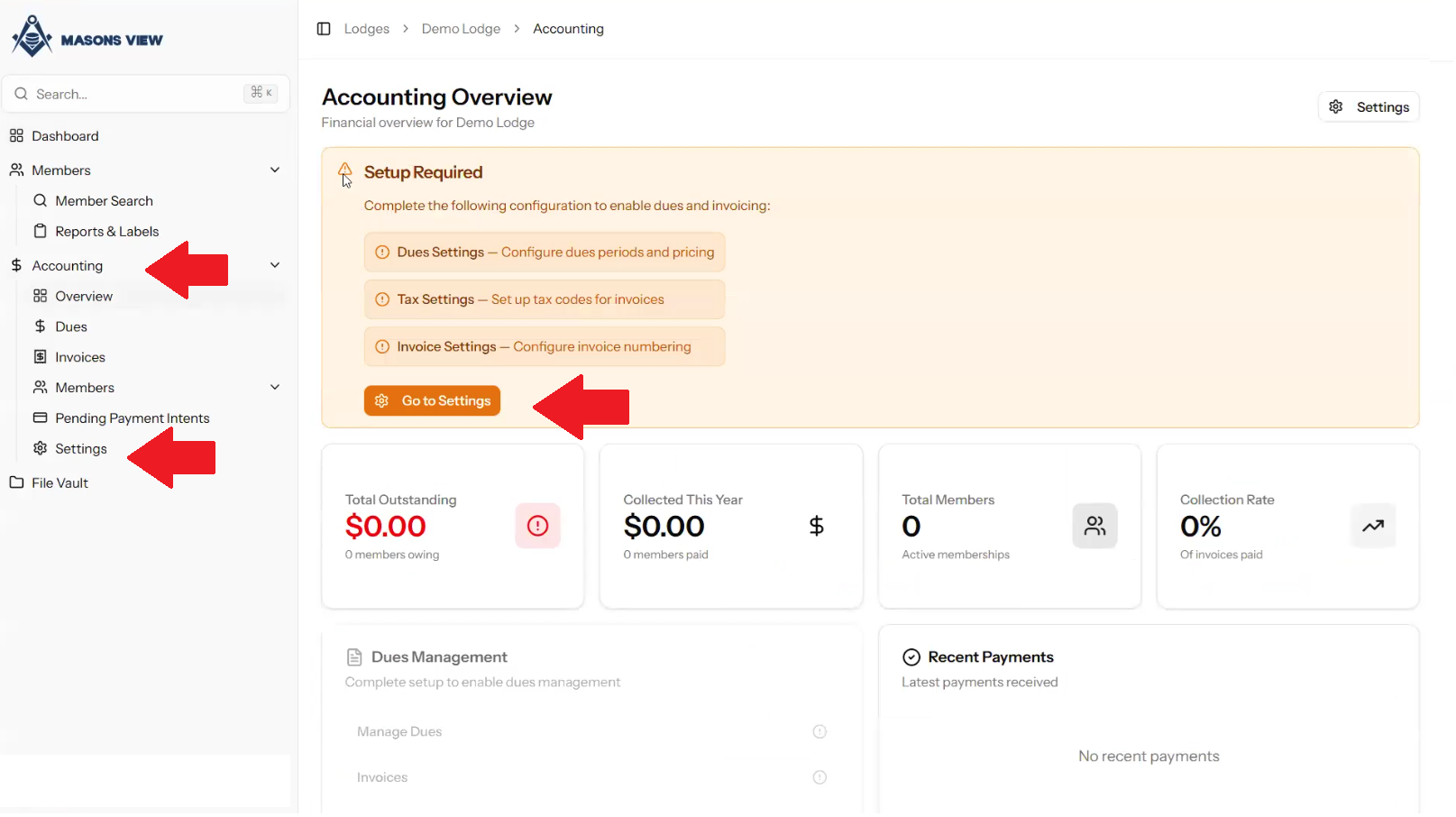
Select ACCOUNTING from the left hand menu to load the accounting dashboard, followed by selecting SETTINGS from either the dashboard itself, or the left hand menu as indicated in the screen grab below.
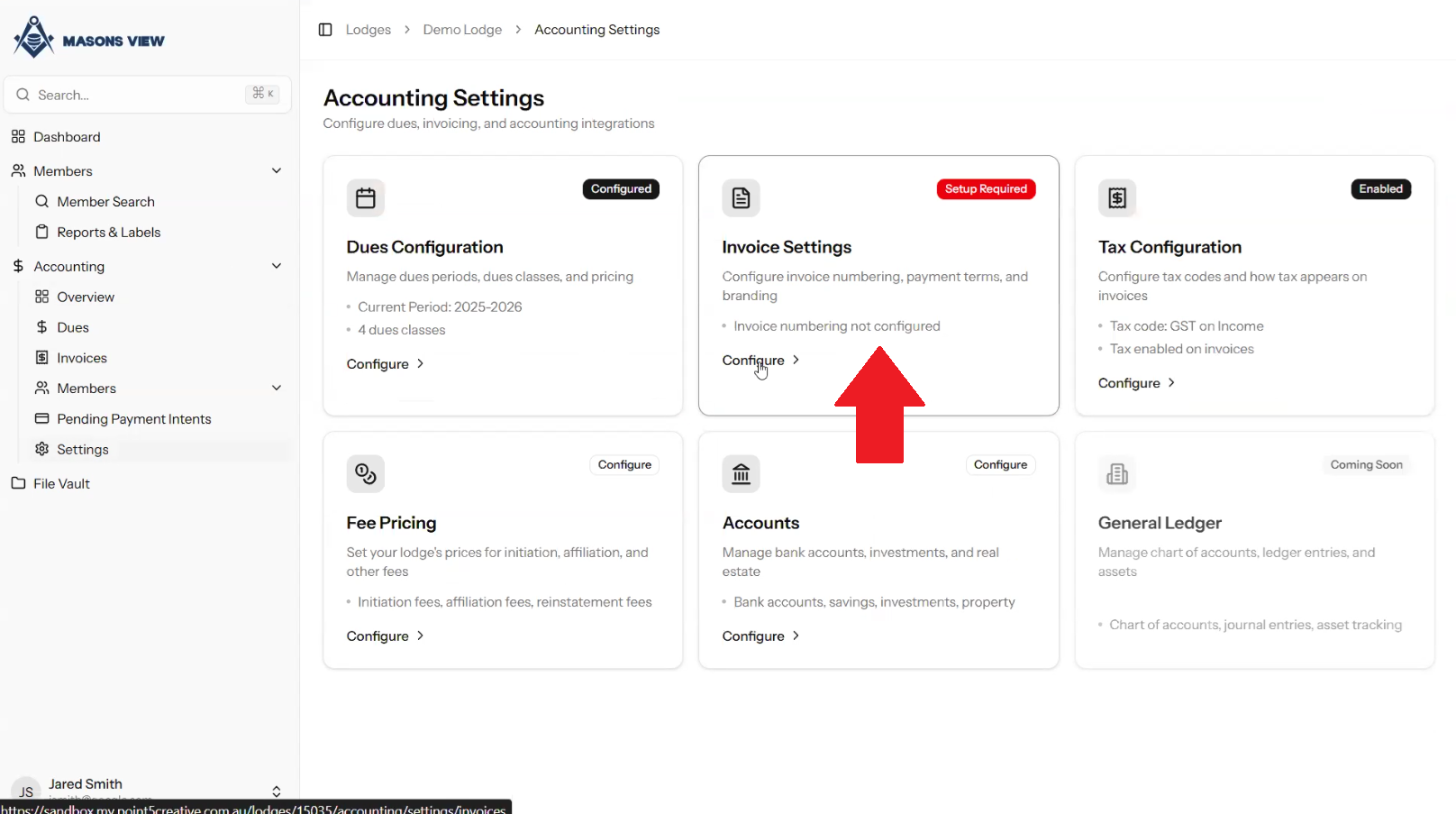
Select INVOICE SETTINGS as per the below screenshot.
Once the INVOICE SETTINGS screen loads, you'll have a number of settings you can amend and set.
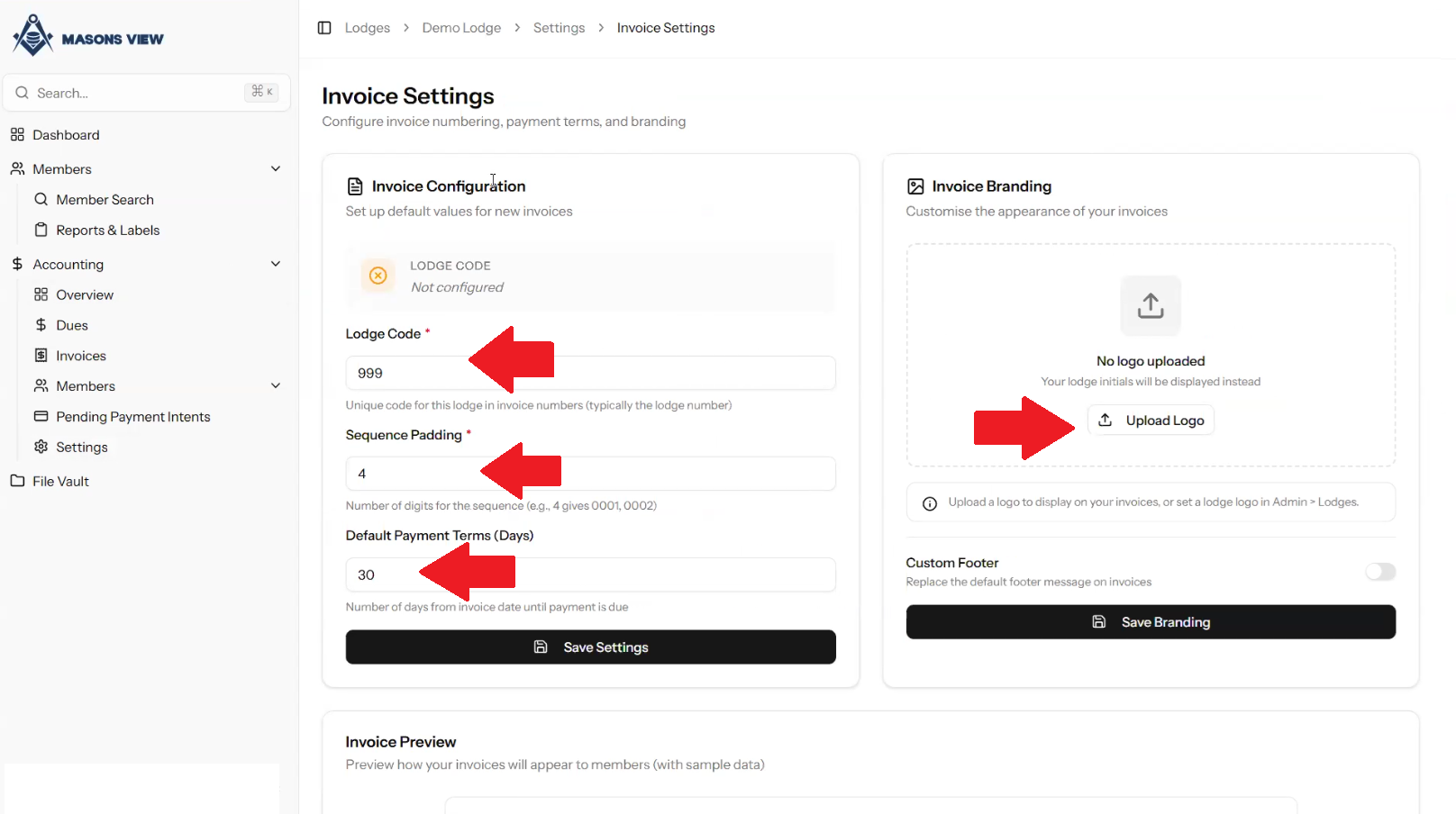
The LODGE CODE is a part of the invoice sequence for your Lodge. It is recommend to leave this code as is for sequencing purposes. The SEQUENCE PADDING field allows you to set how many digits the invoice number will be, this is set to 4 by default. You can also set the DEFAULT PAYMENT TERMS which automatically sets the due date for an invoice's payment, based on the value in this field.
On the right hand side, you can upload your Lodge logo which then is pulled onto any invoices when they are generated.
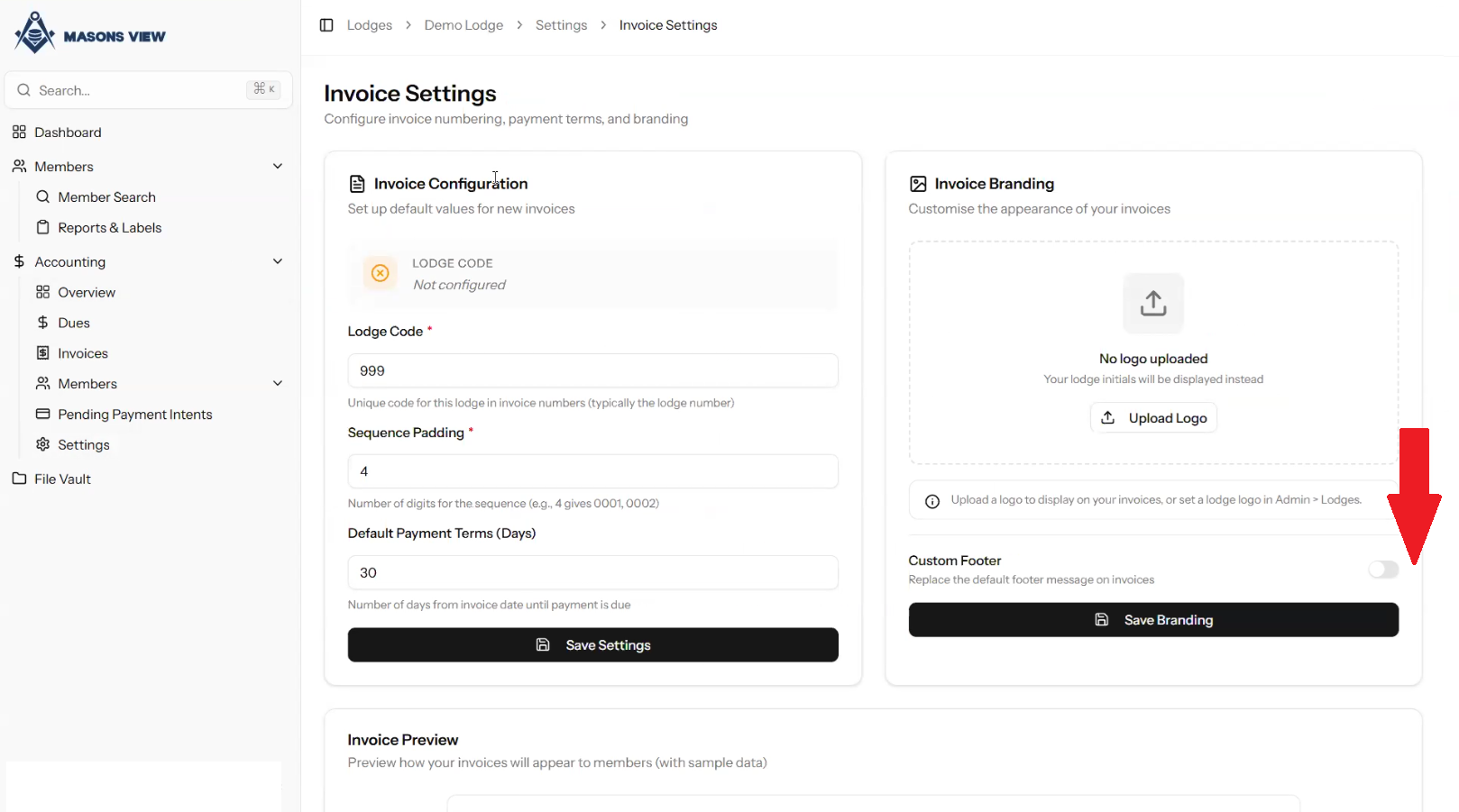
You can also set a custom footer on your invoices if you wish by hitting the toggle against CUSTOM FOOTER.
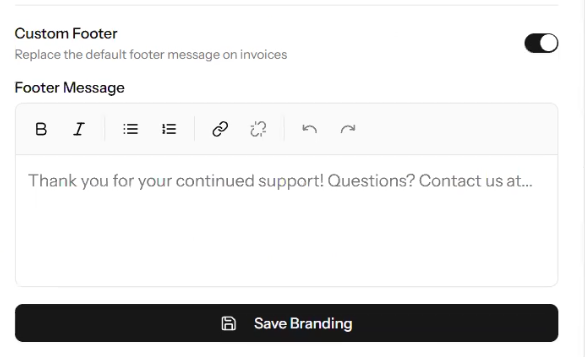
This allows you to then set your own footer which is unique to this Lodge's invoices. Enter your custom details then click SAVE BRANDING.
For additional support, please refer to the following video guide.
Was this article helpful?
That’s Great!
Thank you for your feedback
Sorry! We couldn't be helpful
Thank you for your feedback
Feedback sent
We appreciate your effort and will try to fix the article