1. Setting Dues as a Lodge Treasurer
Login to your portal using your supplied credentials at https://masonsview.com.au/ .
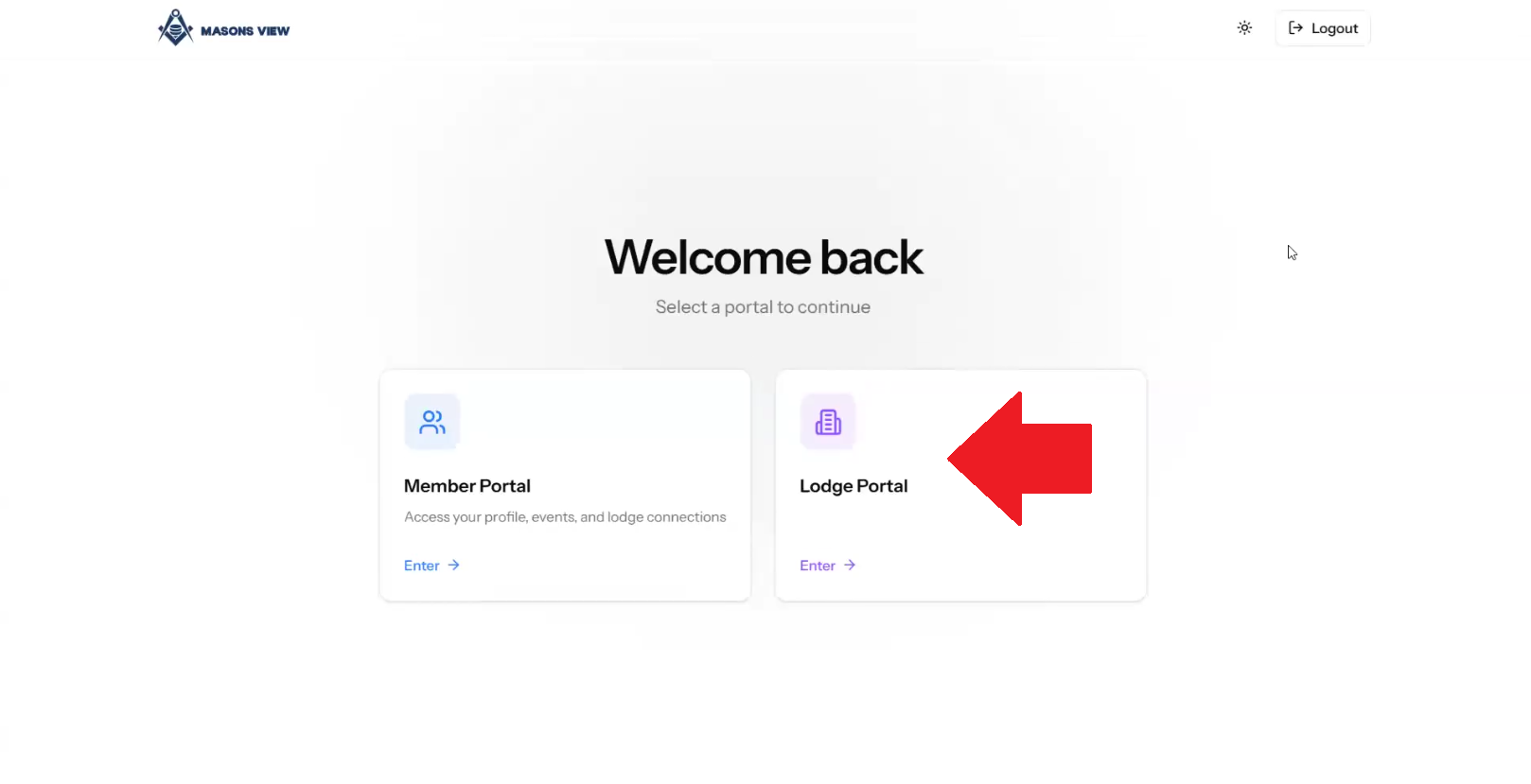
Select the LODGE portal as per the below screenshot.
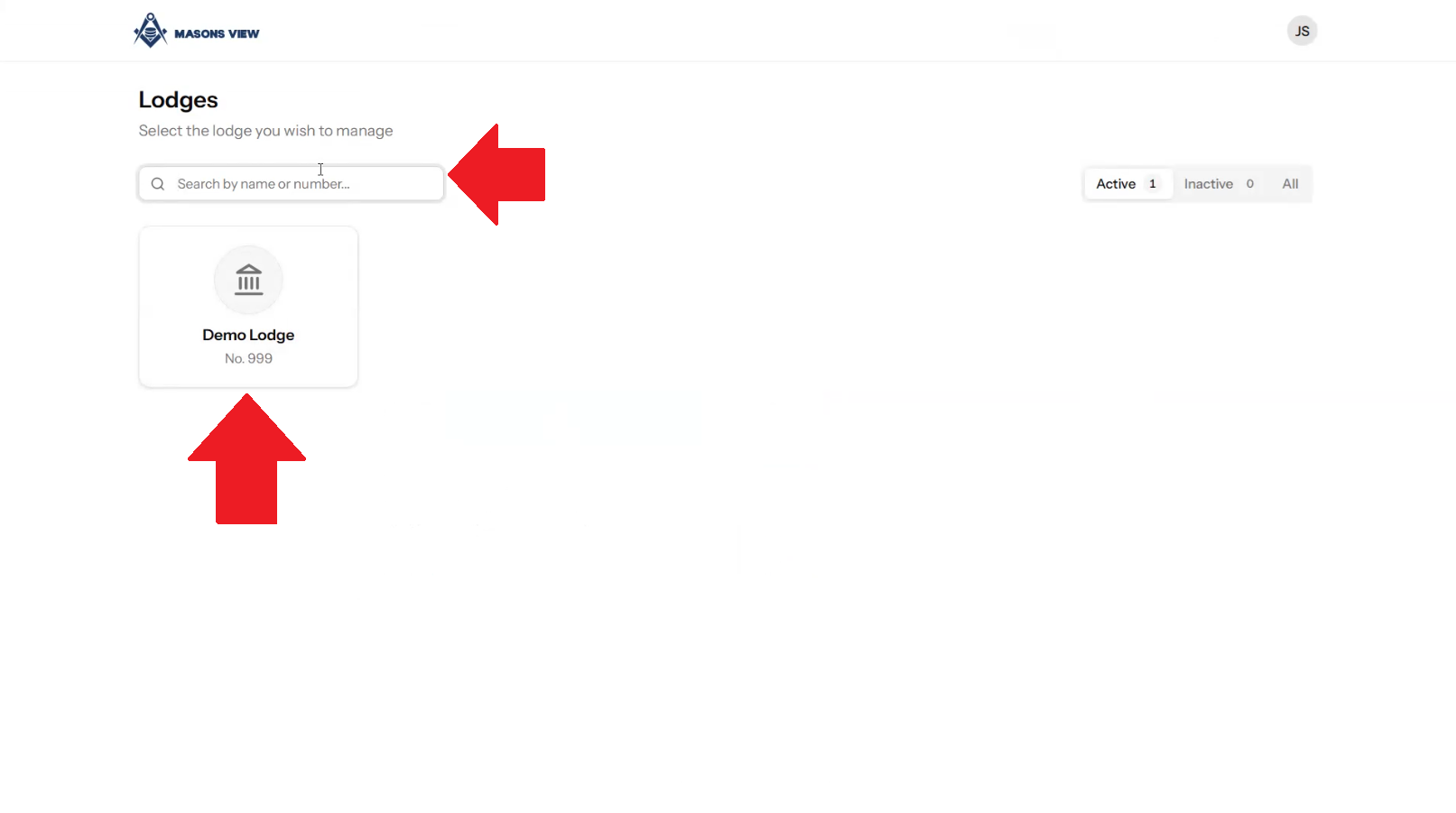
Search for your lodge using the search bar or select your lodge using the buttons on screen.
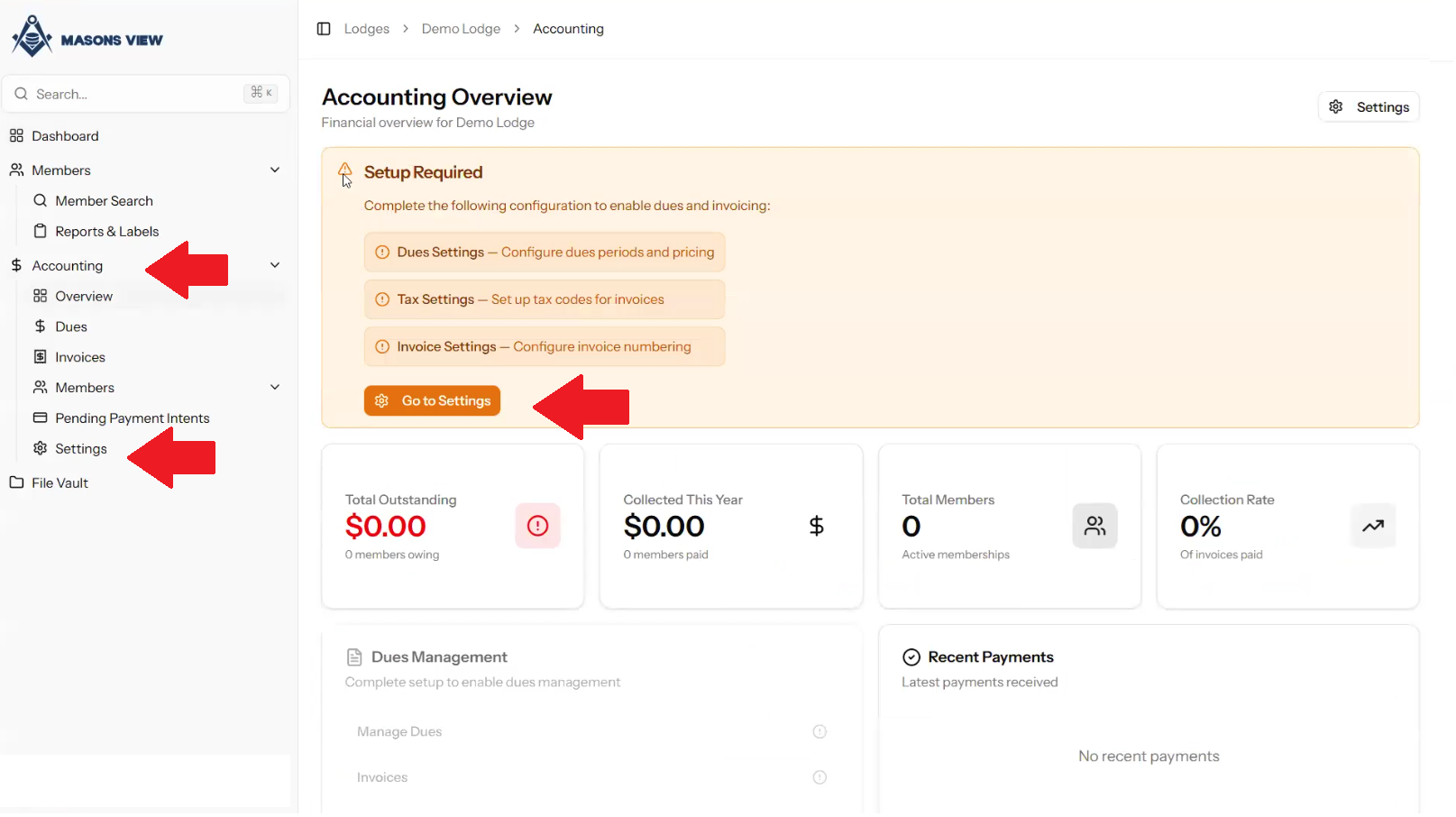
Select ACCOUNTING from the left hand menu to load the accounting dashboard, followed by selecting SETTINGS from either the dashboard itself, or the left hand menu as indicated in the screen grab below.
Select DUES CONFIGURATION
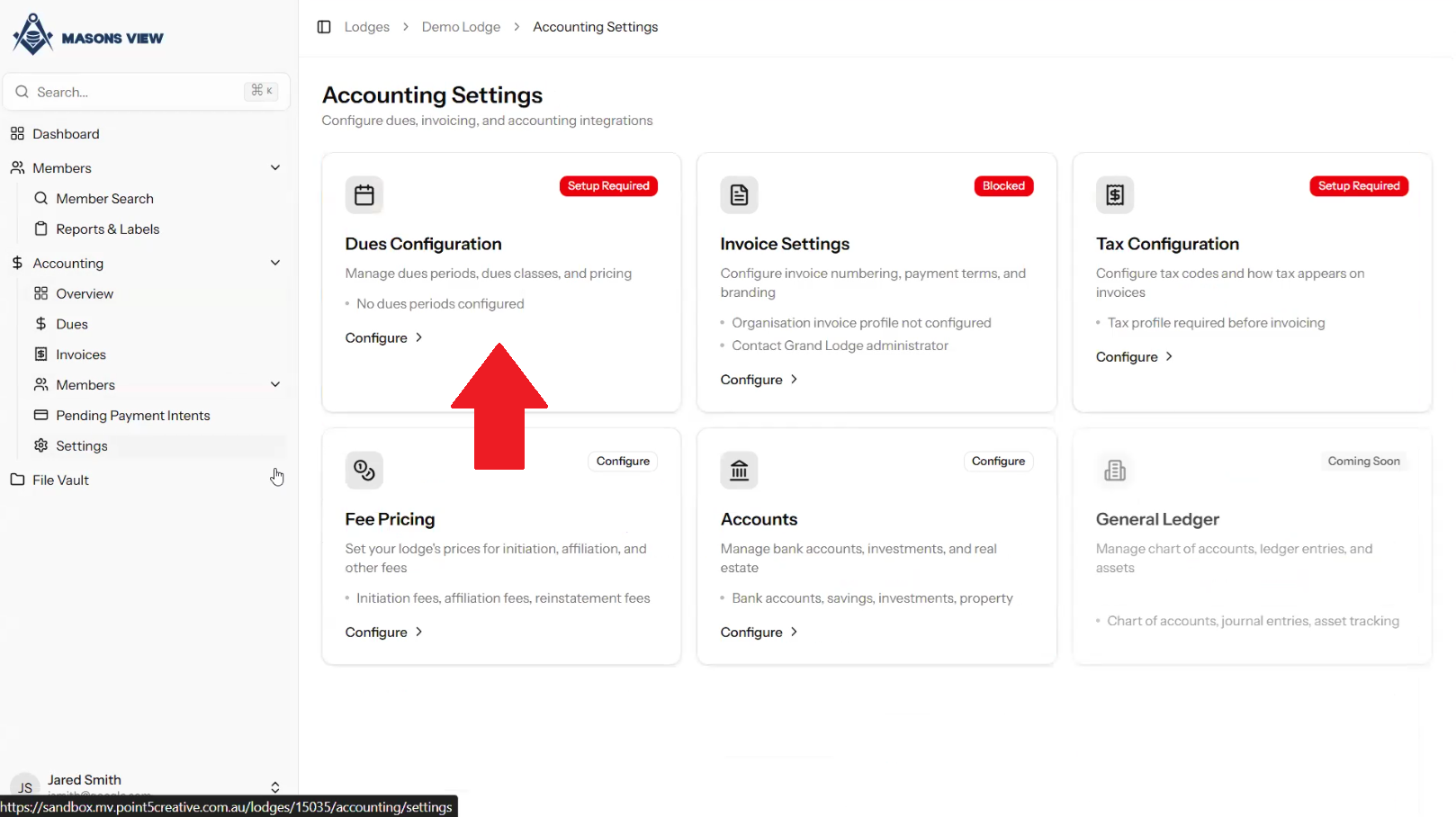
Once the DUES CONFIGURATION loads there's a number of options available.
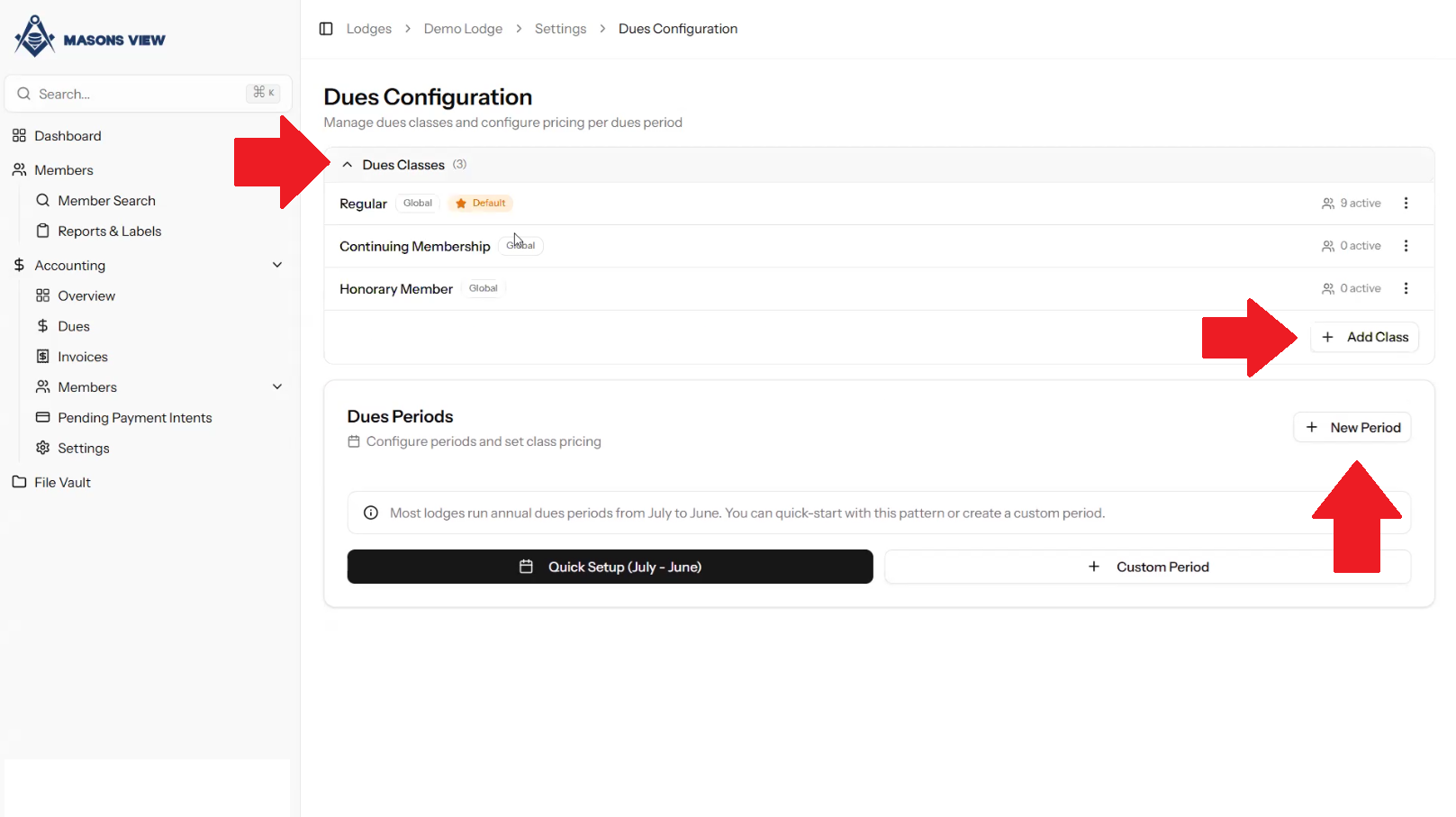
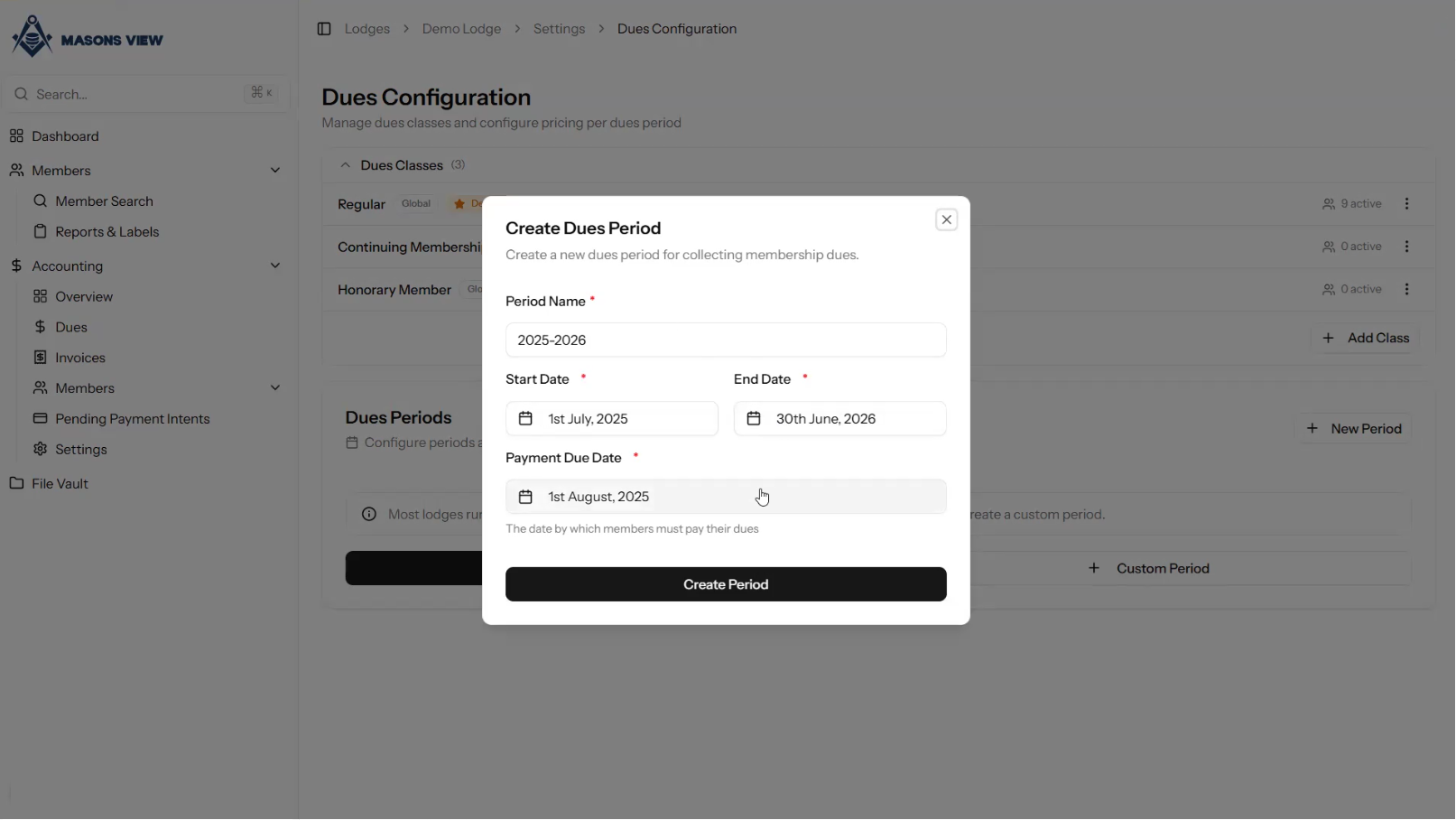
Clicking on the arrow next to DUES CLASSES will drop down the existing dues options. You can ADD CLASS by clicking the appropriate button for setting a discounted rate as an example. Selecting NEW PERIOD will pop out the CREATE DUES PERIOD box where you select the name, start and end dates of the period, and the payment due date. Once you have entered your information, select CREATE PERIOD to continue.
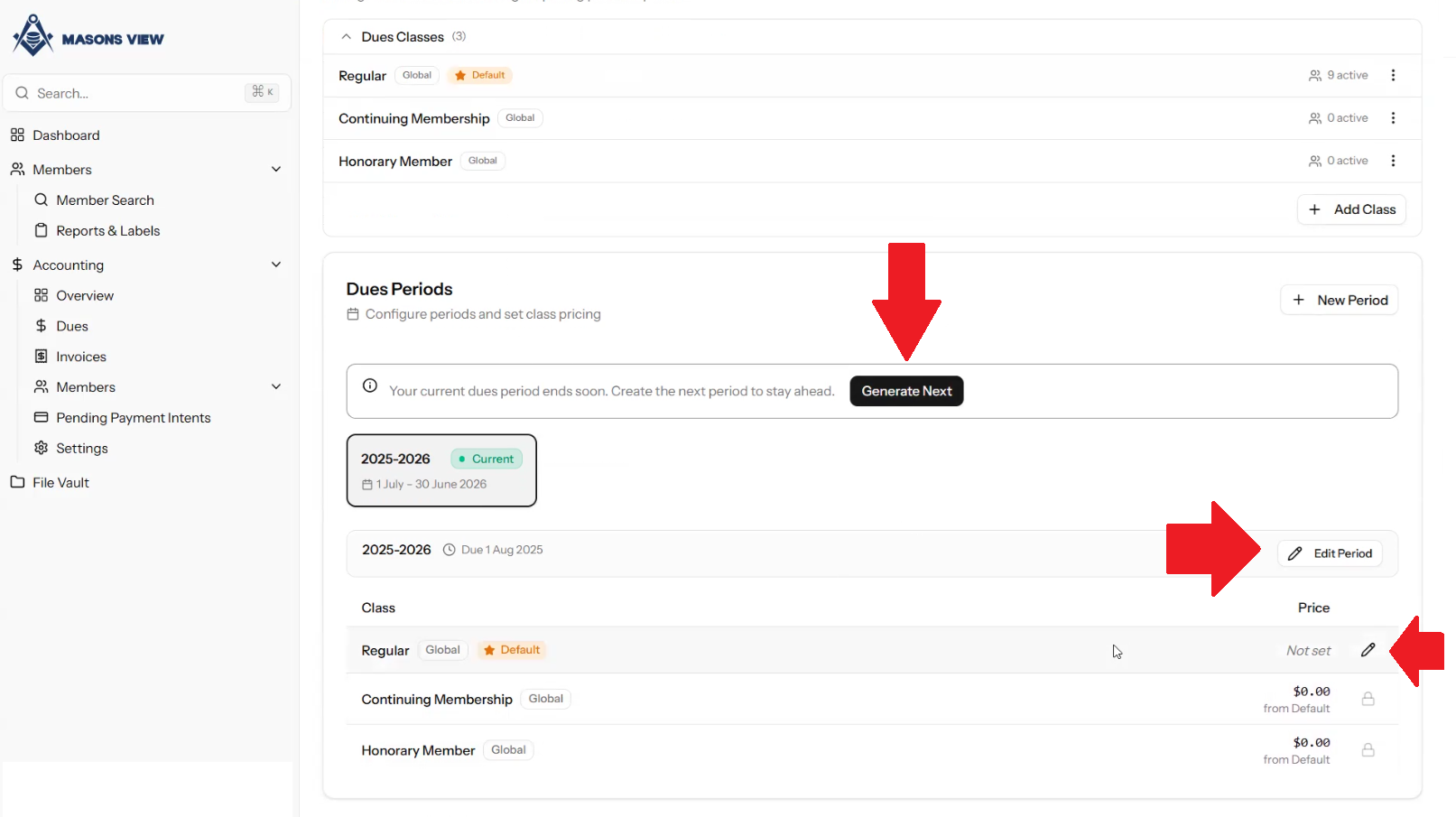
When you've setup the parameters of your dues period, you can EDIT PERIOD to amend dates if needed, GENERATE NEXT to create the next period of dues, and AMEND PRICING of your regular and any custom dues you may have created.
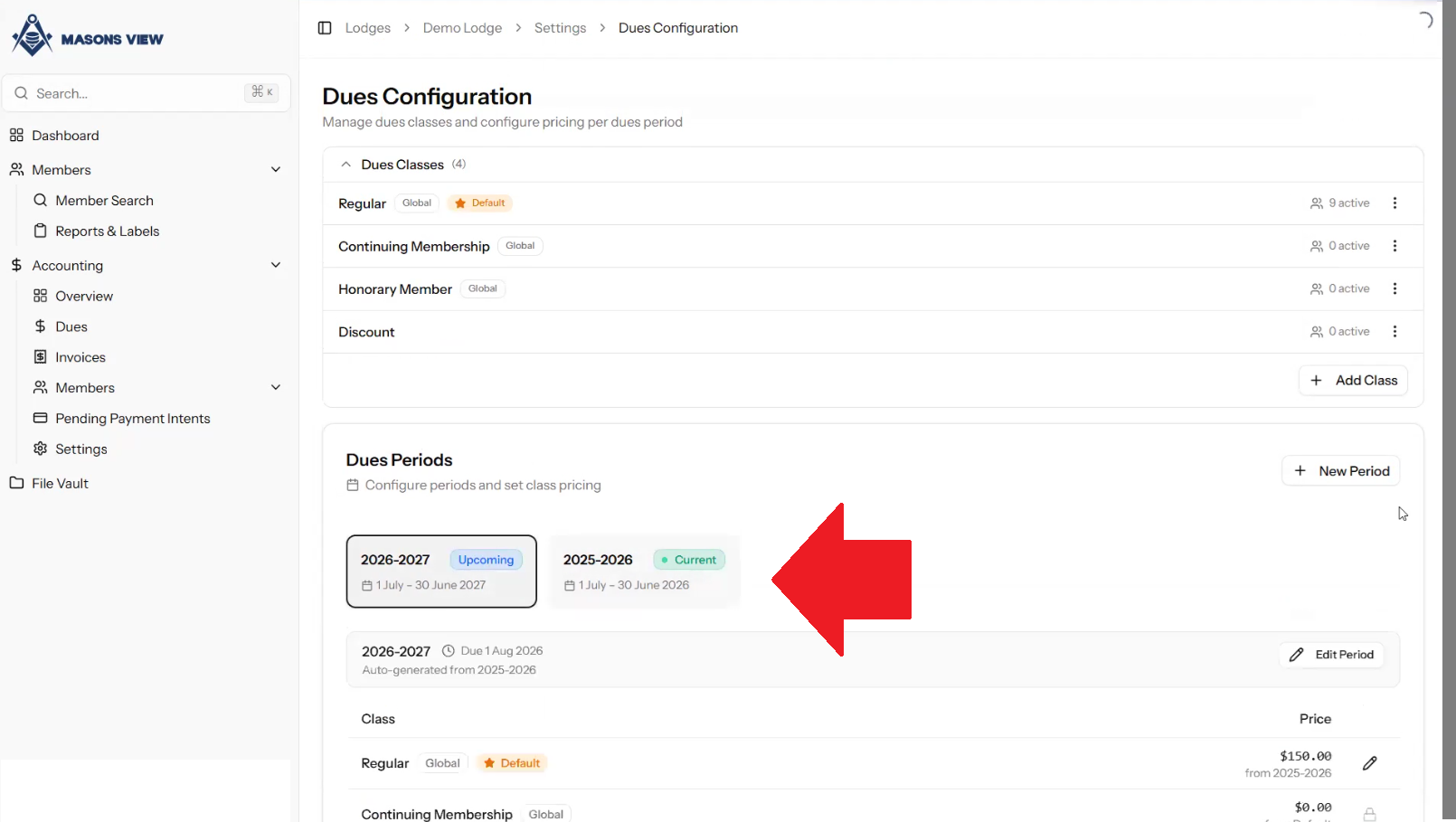
Where multiple DUES PERIODS exist you can toggle between them by selecting the appropriate period. Within each period you can set differing prices to reflect the current period.
For a video walkthrough on setting dues, please refer to the following content.
Was this article helpful?
That’s Great!
Thank you for your feedback
Sorry! We couldn't be helpful
Thank you for your feedback
Feedback sent
We appreciate your effort and will try to fix the article