5. Setting up Bank Accounts as a Lodge Treasurer
Login to your portal using your supplied credentials at https://masonsview.com.au/ .
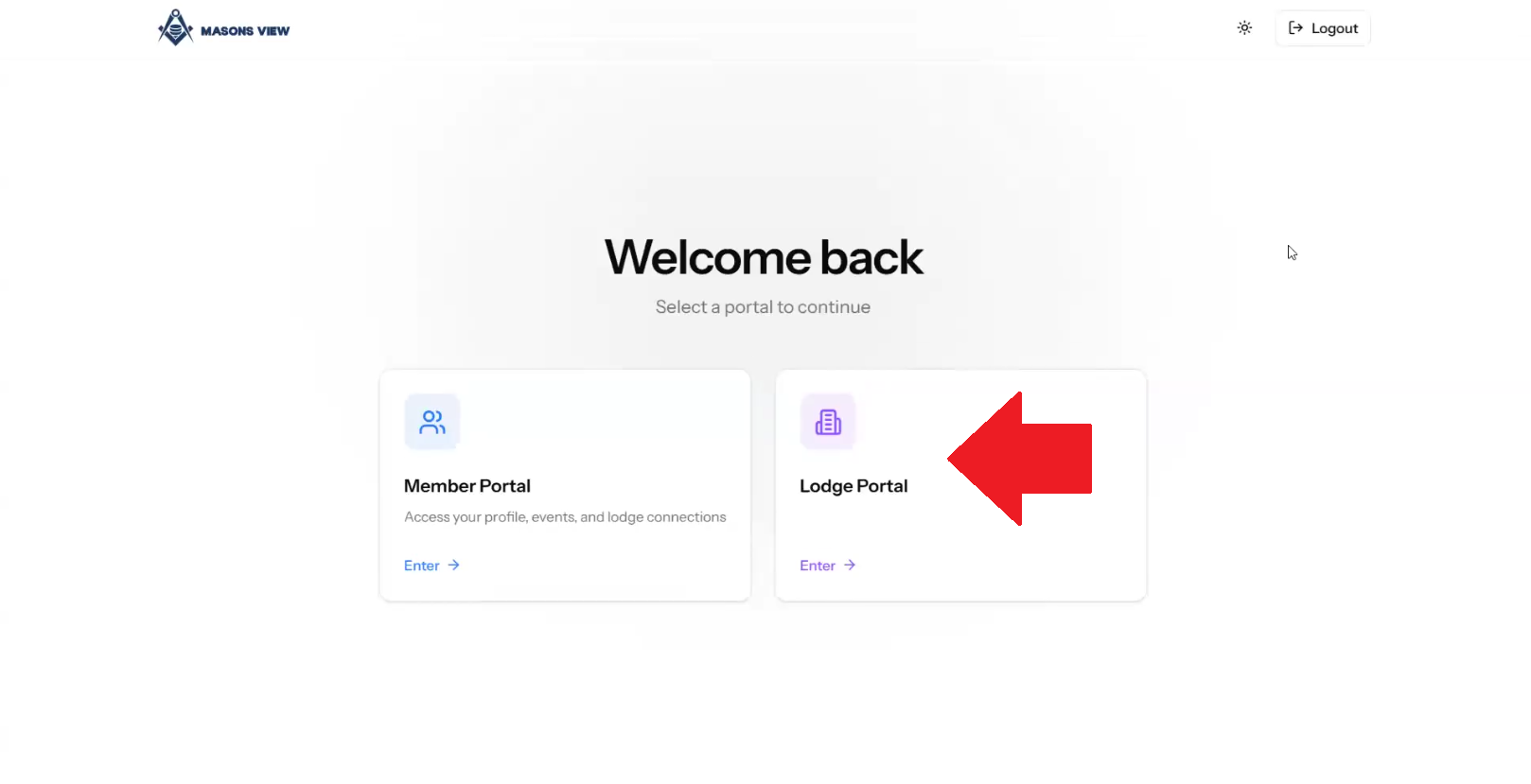
Select the LODGE portal as per the below screenshot.
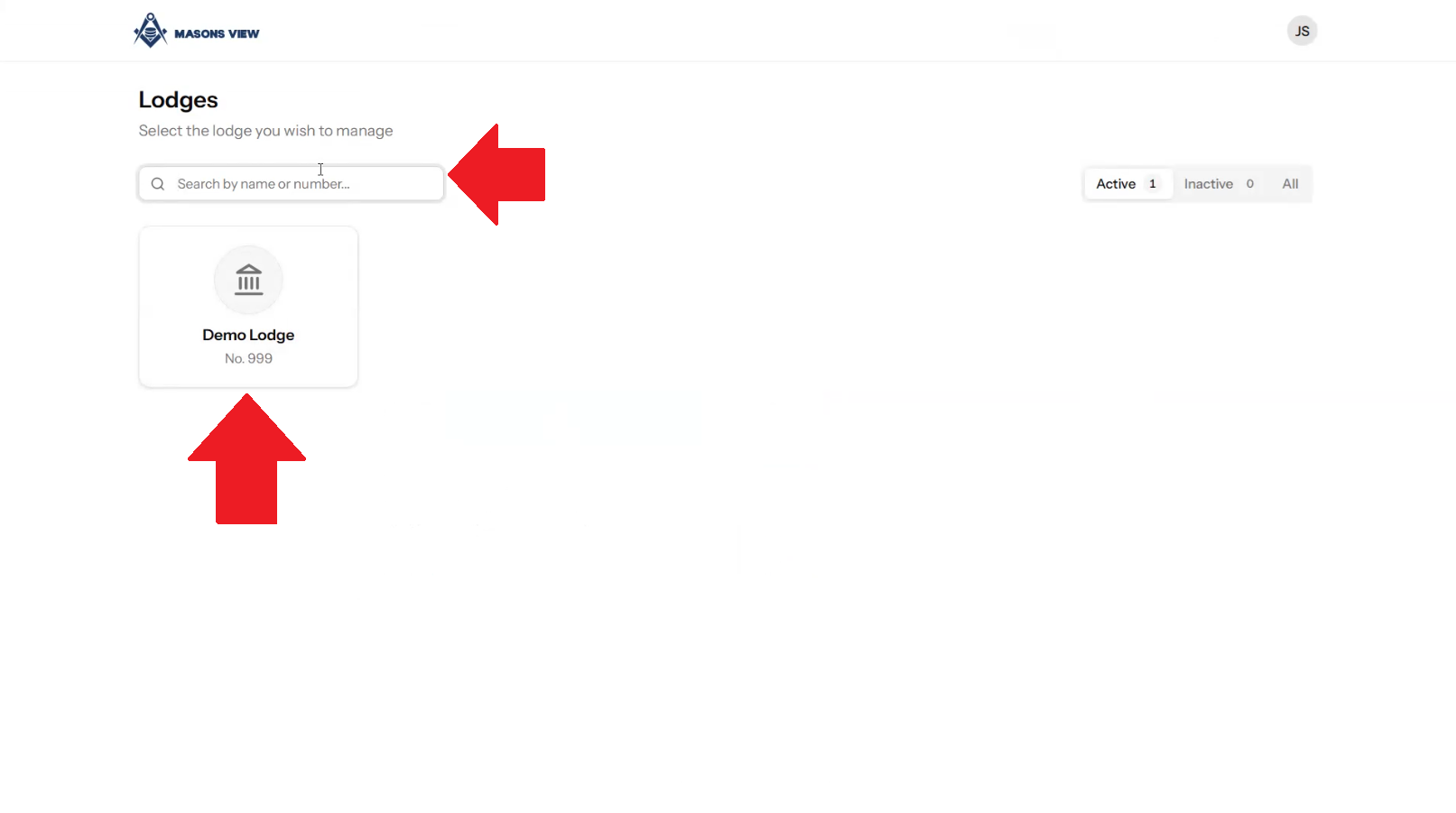
Search for your lodge using the search bar or select your lodge using the buttons on screen.
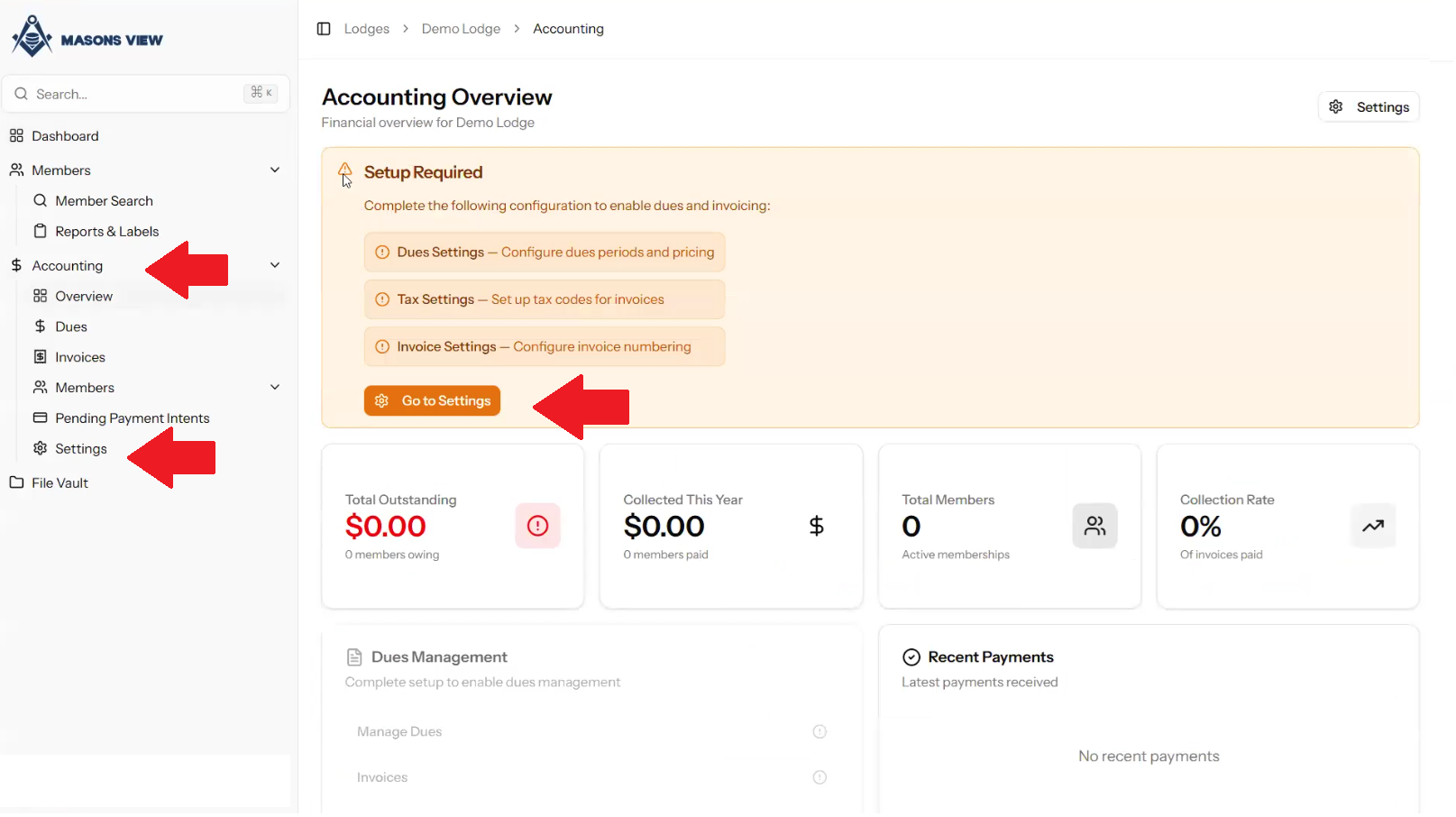
Select ACCOUNTING from the left hand menu to load the accounting dashboard, followed by selecting SETTINGS from either the dashboard itself, or the left hand menu as indicated in the screen grab below.
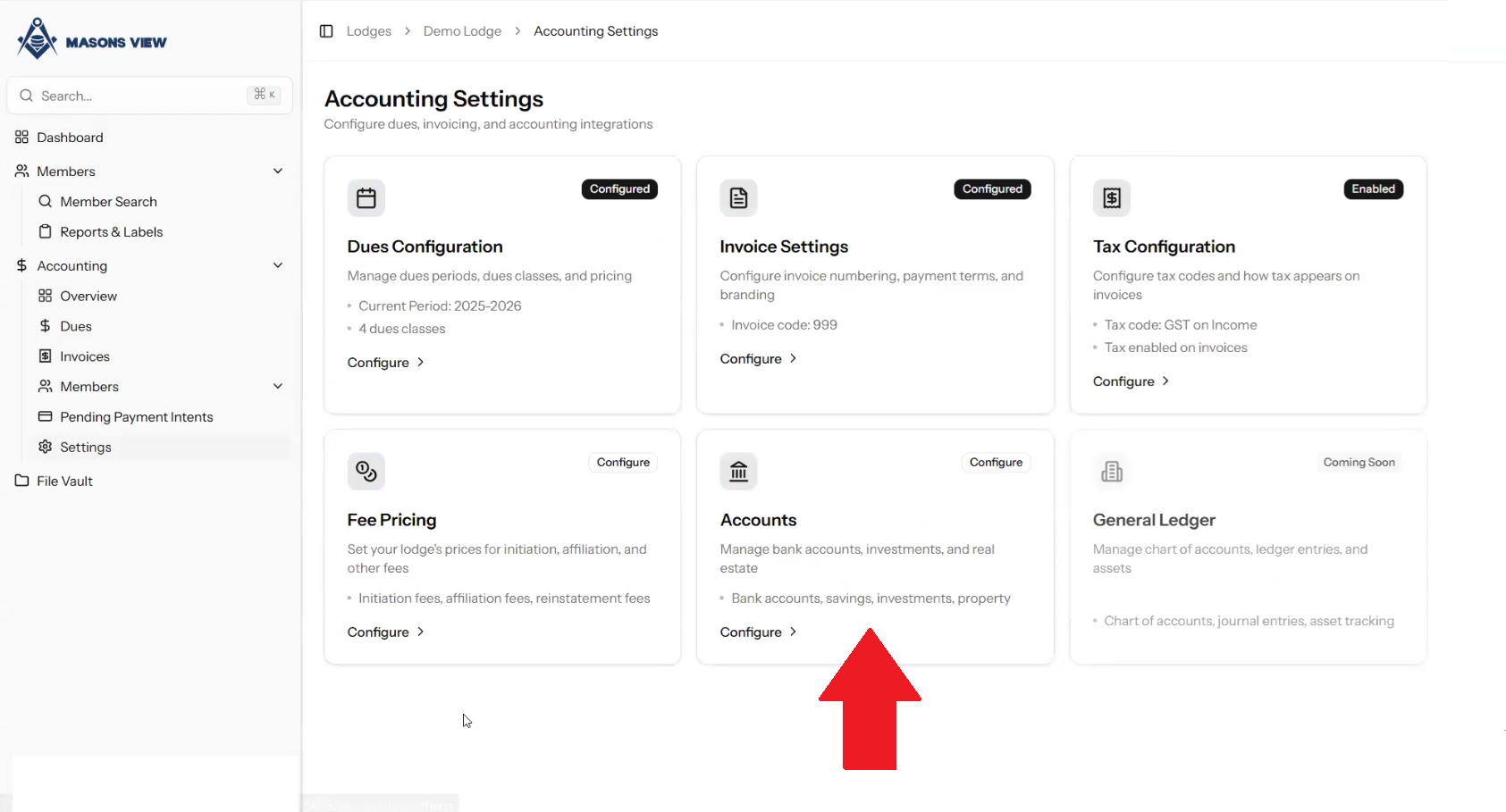
Click on the ACCOUNTS tab to enter into account settings.
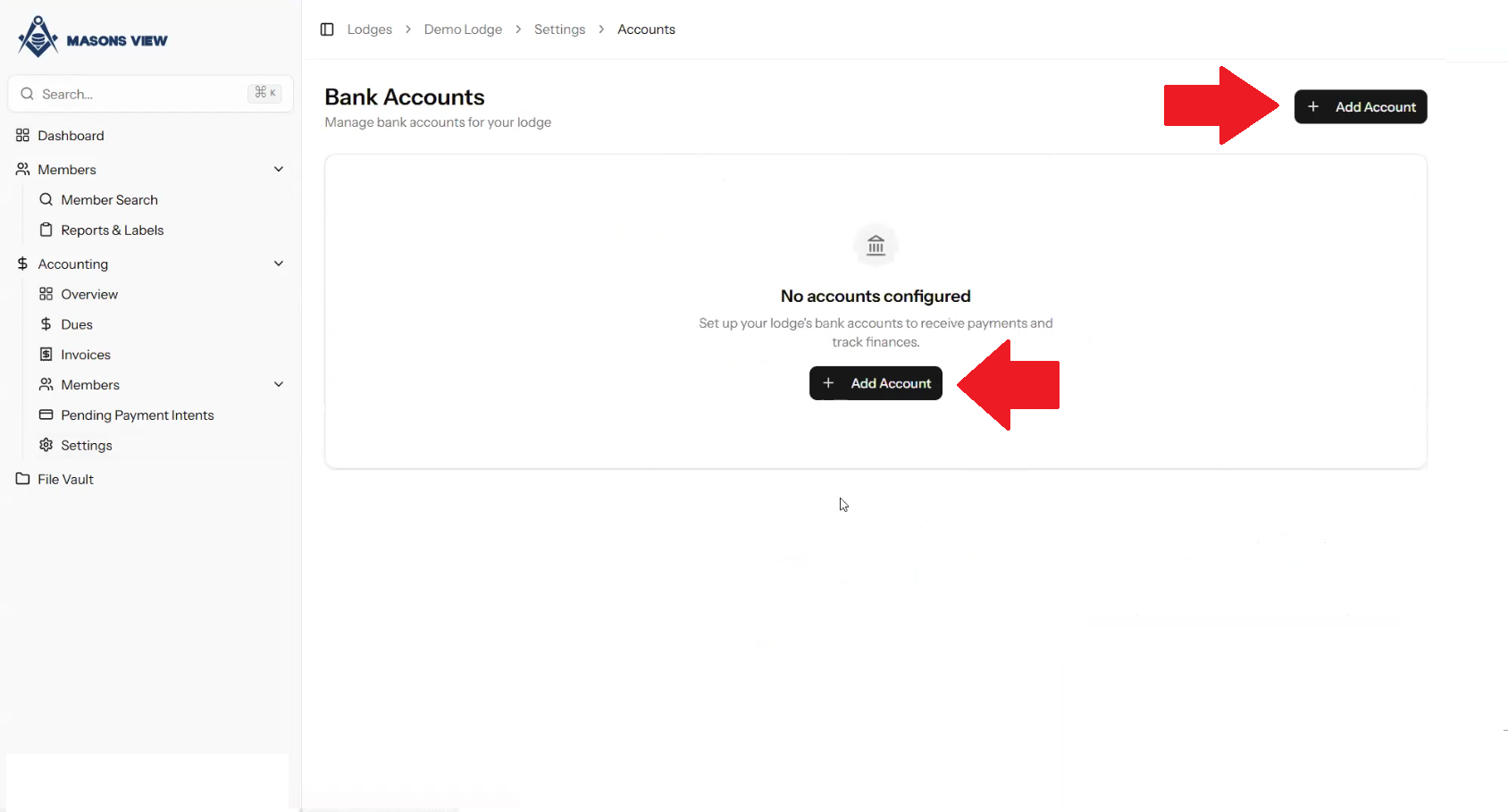
When you load into the ACCOUNTS section for the first time, the screen will be devoid of data until such time as you select ADD ACCOUNT to begin populating your accounts into Masons View.
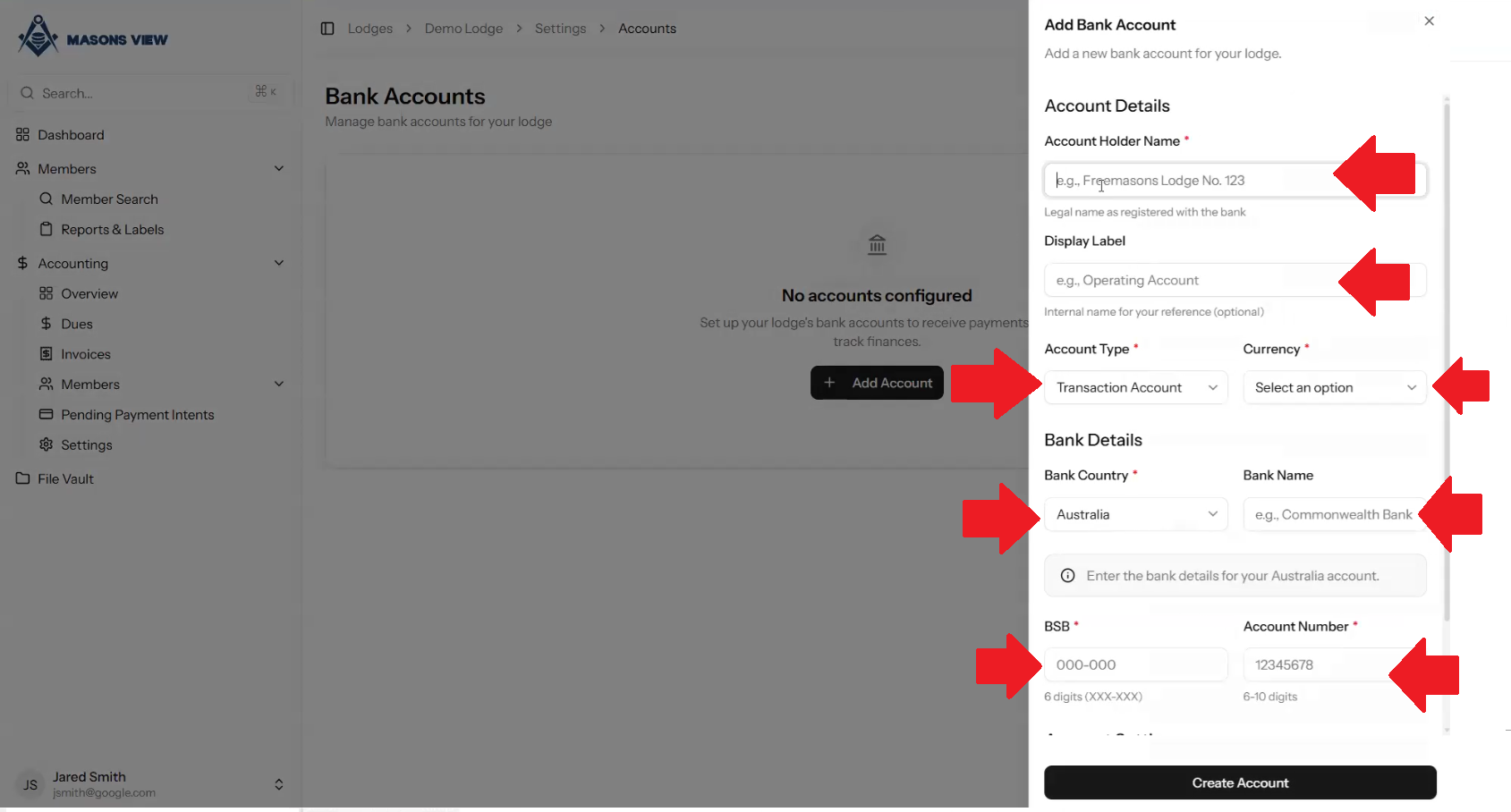
A pop up window will appear on the right of screen where you set your accounting details. The ACCOUNT HOLDER NAME is the name of the bank account. The DISPLAY LABEL is what will show to users to identify what this particular account is used for.
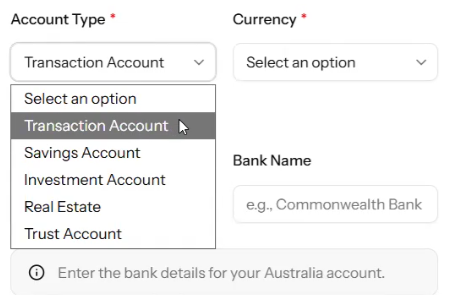
When setting the ACCOUNT TYPE, all Lodges must have a TRANSACTION ACCOUNT at a minimum for regular banking. The transactional account allows for incoming and outgoing funds.
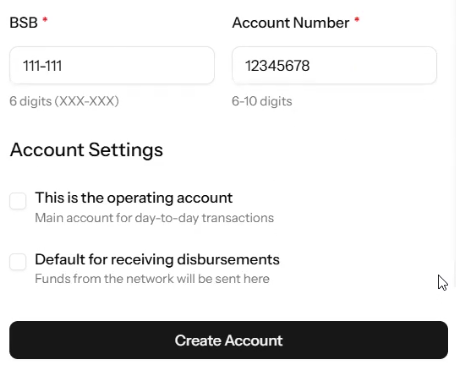
You can also set the CURRENCY, BANK NAME, BSB and ACCOUNT NUMBER. Once this has been set, specify if this account is the OPERATING ACCOUNT for day to day transactions and where this account receives disbursements from Grand Lodge where applicable.
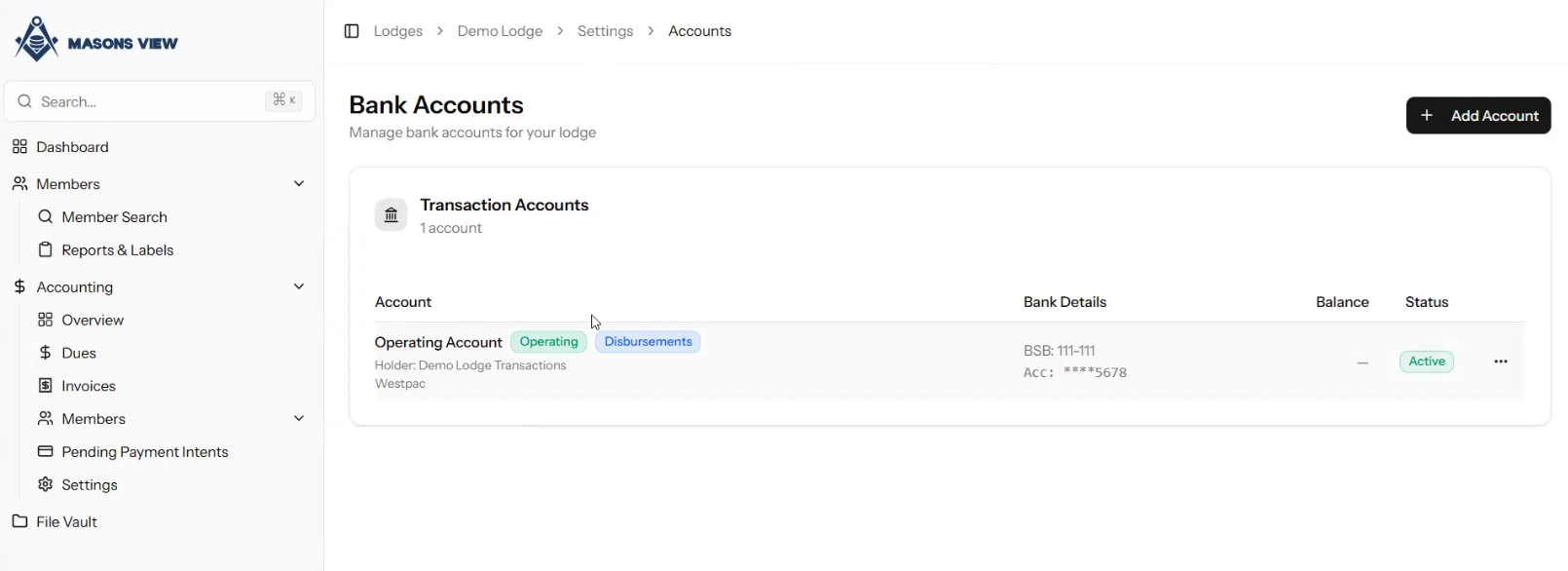
Once the account has been created, it will appear in the list of accounts. To add additional accounts, you'd simply click ADD ACCOUNT and repeat the process as needed.
For additional resources and assistance, please refer to the below YouTube video on this topic.
Was this article helpful?
That’s Great!
Thank you for your feedback
Sorry! We couldn't be helpful
Thank you for your feedback
Feedback sent
We appreciate your effort and will try to fix the article