Member Portal Walkthrough
Login to your portal using your supplied credentials at https://masonsview.com.au/ .
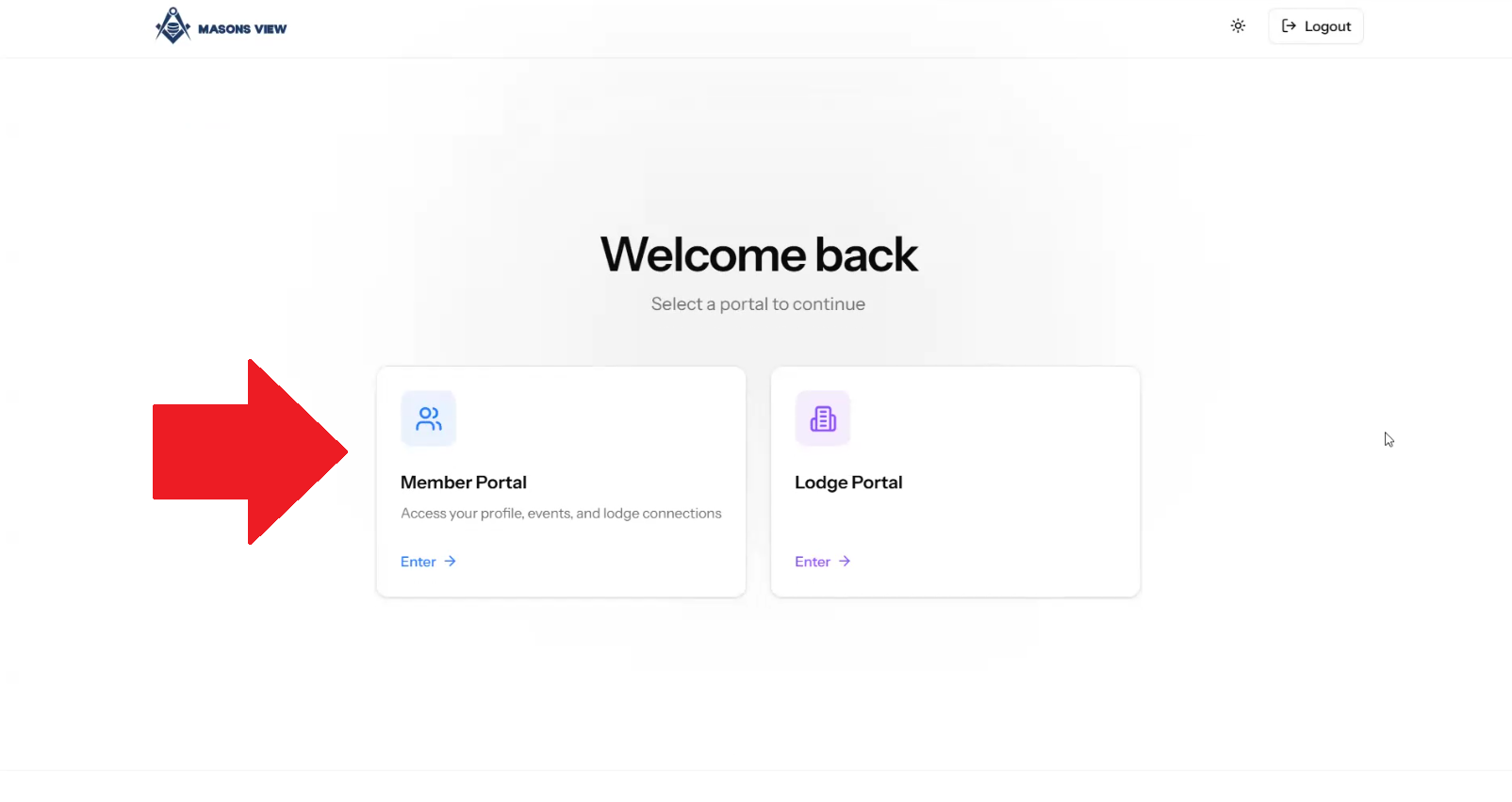
If you have multiple roles (eg treasurer, secretary) you will be given the opportunity to load Lodge portal. In this instance, select MEMBER PORTAL. If you are solely a member, you will be loaded directly into the MEMBER PORTAL.
Once logged in there are 3 key areas of your portal on the dashboard.
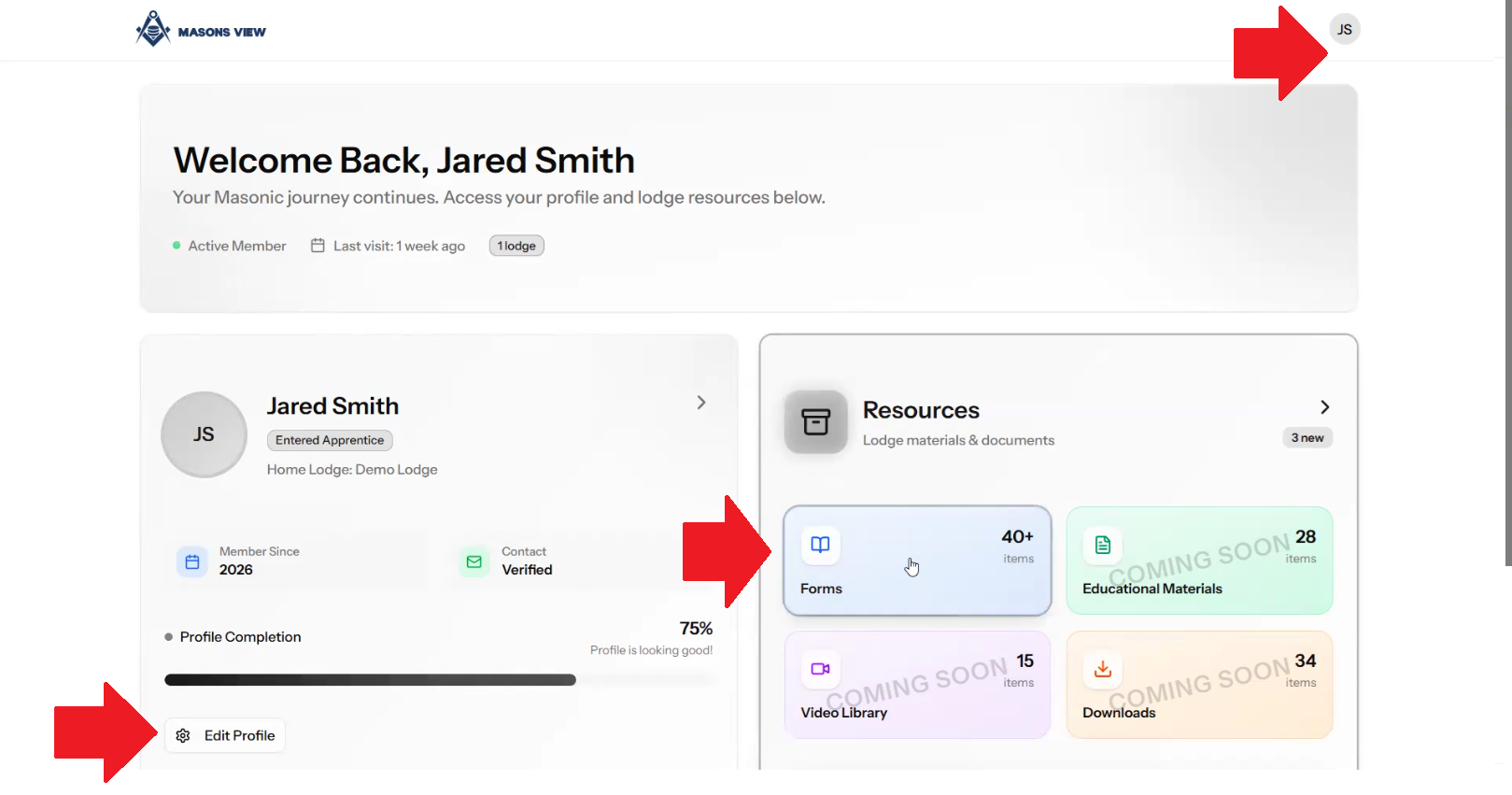
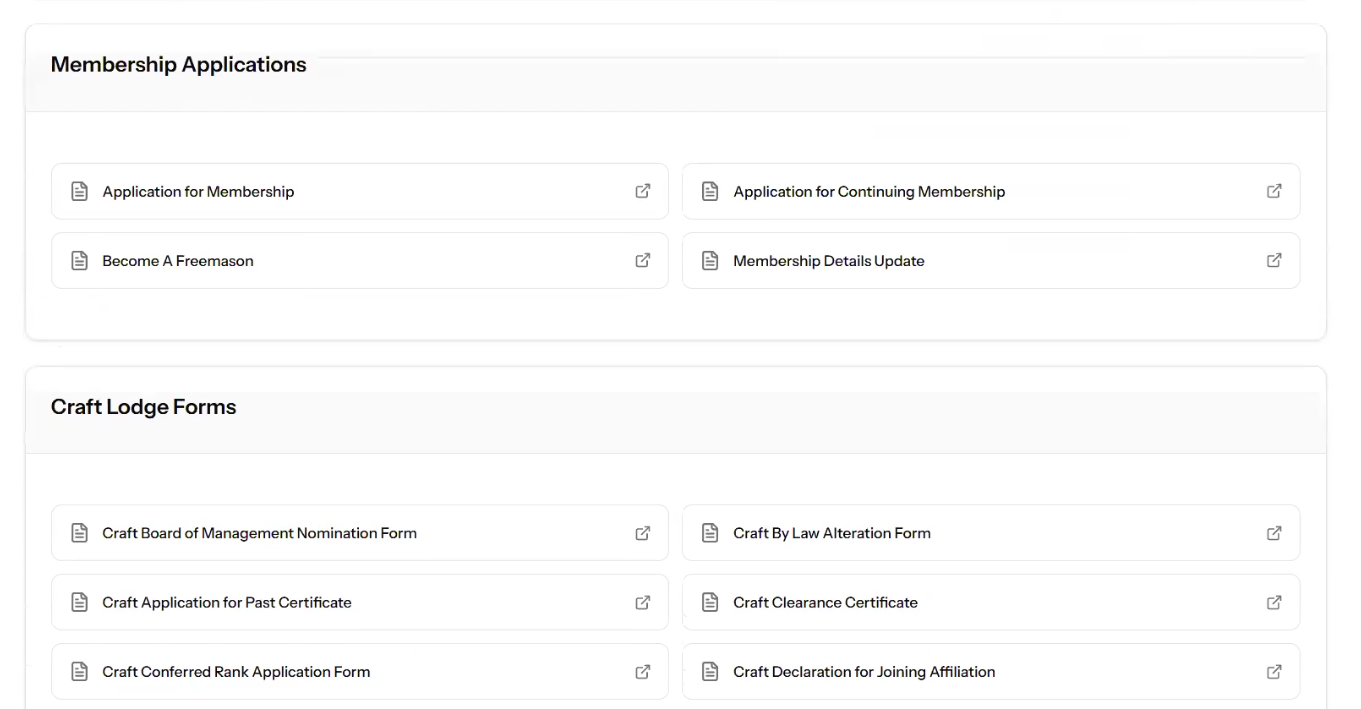
Selecting the FORMS button under RESOURCES will load up documents and links you can access that may be required for your role as a Freemason.
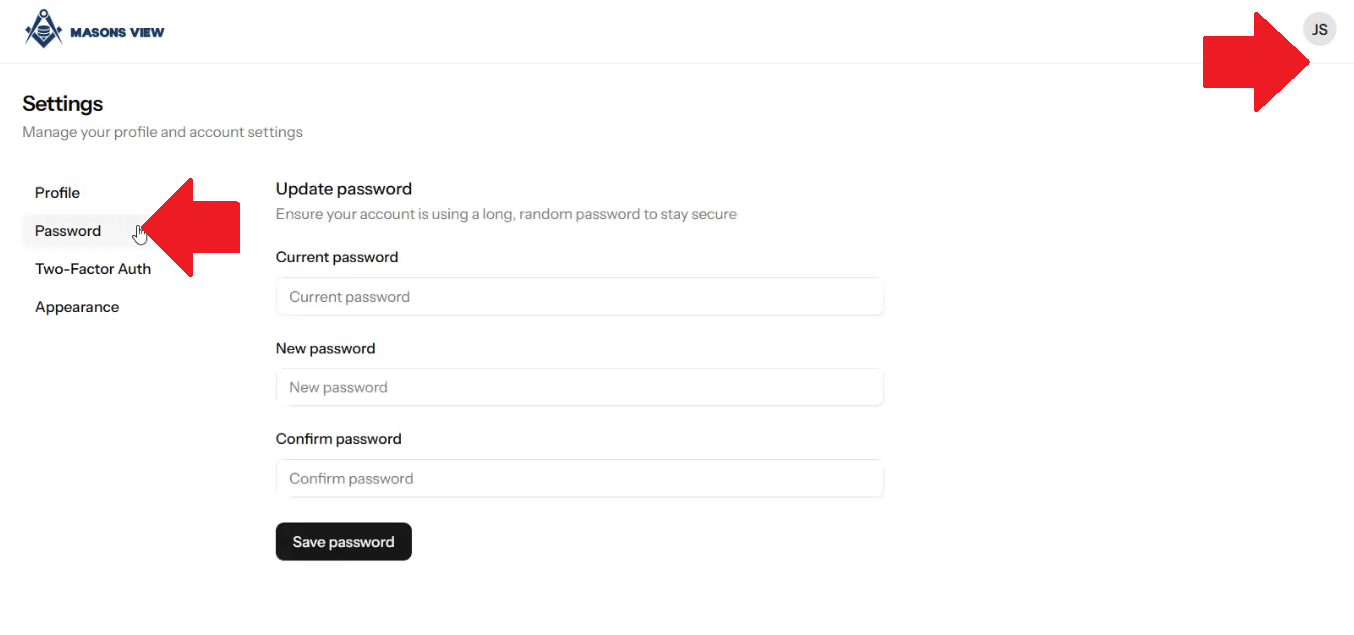
Selecting your initials in the top right of screen will load your profile options where you can change your password amongst other options.
Finally, selecting EDIT PROFILE from your home dashboard will take you into your profile proper. Here you can VIEW FULL RECORD or EDIT PERSONAL INFORMATION. EDITTING you PERSONAL INFORMATION will allow you to make changes to your profile such as your date of birth or naming details.
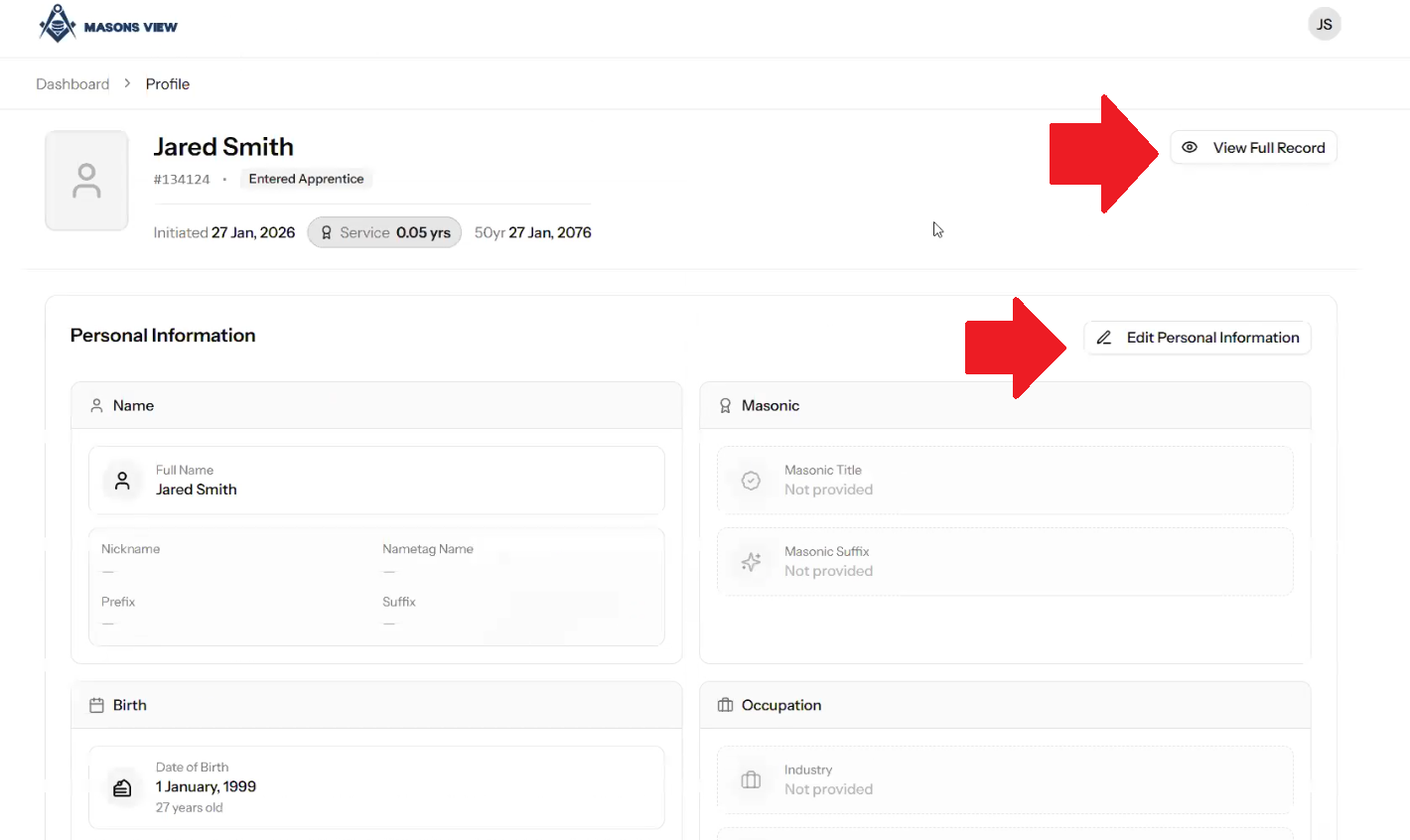
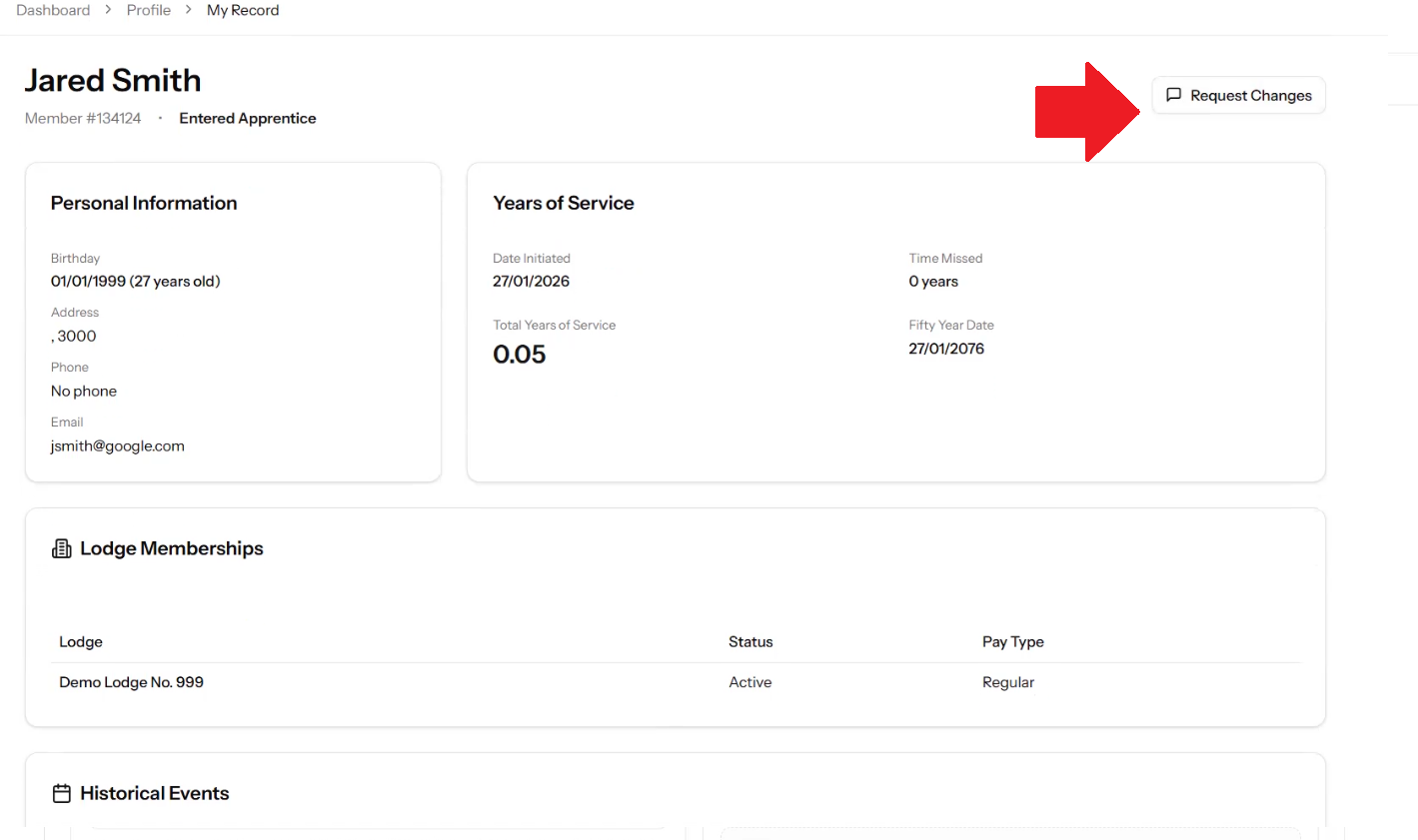
If you select VIEW FULL RECORD you will see your Masonic Record, including roles and key dates. If you need any amendments made, you can click REQUEST CHANGES which will trigger a ticket to Grand Lodge administration to review your comments and adjust accordingly.
Please review the following video reference for additional queries.
Was this article helpful?
That’s Great!
Thank you for your feedback
Sorry! We couldn't be helpful
Thank you for your feedback
Feedback sent
We appreciate your effort and will try to fix the article